These fixes stopped my wireless Android Auto connection from dropping during drives.
Nov 23, 2026
Wireless Android Auto Dropouts Can Be Fixed by Checking Wi-Fi, Bluetooth, Location, Battery Rules, and 5GHz Interference
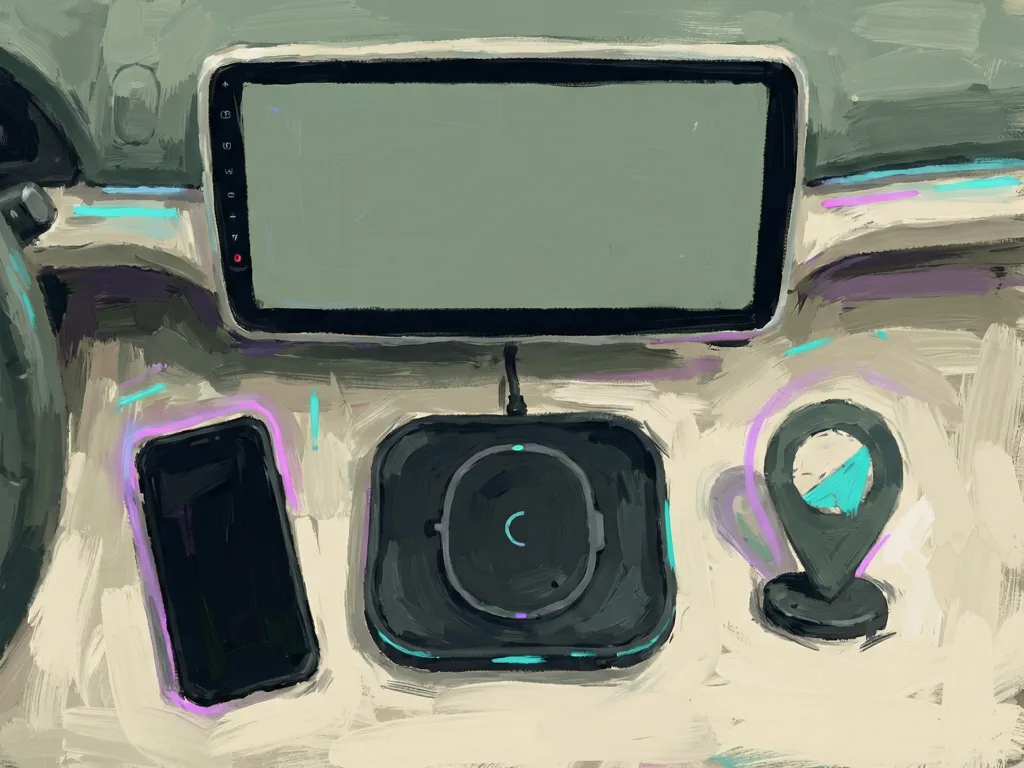
What wireless Android Auto does when it works
Once the habit forms, wireless Android Auto feels indispensable. Getting into the car and starting the engine can make Google Maps, music, and notifications appear on the infotainment screen without plugging the phone in.
The problem is that the wireless link can fail at the worst possible moments. In some drives, Android Auto disconnects mid-drive. In other cases, it struggles to reconnect. That is frustrating, especially when the goal is to start driving without fiddling with the phone.
Instead of giving up wireless Android Auto and going back to a cable, changing a few phone settings can make the connection much more reliable. After those changes, the interruptions become far less common.
Why Wi-Fi, Bluetooth, and Location matter
Start with the three essential connections. Wireless Android Auto needs more than Bluetooth to work reliably.
Bluetooth helps establish the initial connection, but Wi-Fi handles the wireless projection to the car’s infotainment system. Location Services should also remain enabled during setup.
Before trying more complicated fixes, check that none of these services has been accidentally turned off. Swipe down from the top of the phone to open Quick Settings and make sure Wi-Fi, Bluetooth, and Location are enabled.
If they are already on, turn Bluetooth and Wi-Fi off and back on. Restarting the phone and the car’s infotainment system before attempting to reconnect can also help.
When an old Bluetooth pairing causes problems
If Android Auto keeps disconnecting, remove the car’s existing Bluetooth pairing and set it up again. Old connection details can sometimes cause pairing problems, and starting fresh is a simple way to rule them out.
On the phone, open Settings, then Connected devices, then Android Auto, then Vehicles. Select the car and tap Forget.
Then remove the phone from the car’s Bluetooth device list. Restart both devices and pair them again by following the prompts.
Battery restrictions can interrupt the connection
Battery optimization can help the phone last longer, but it can also be too aggressive.
Android can restrict background app activity to reduce power consumption, and some manufacturers add further battery-saving features.
A better fix is to remove battery restrictions specifically for Android Auto rather than disabling battery optimization across the entire phone.
On most Android phones, open Settings, then Apps, then Android Auto. Tap App battery usage or Battery. Tap Allow background usage. Select Unrestricted if the phone offers it.
This lets Android Auto work in the background without the usual battery restrictions. Android’s Unrestricted setting allows all background work, while Restricted can prevent an app from running properly.
Software updates can affect compatibility
It is easy to assume a connection problem comes from the phone’s settings, but the car’s infotainment software can also be involved.
Android Auto depends on several moving parts: the Android operating system, Google Play Services, the Android Auto app, Bluetooth, Wi-Fi, and the vehicle’s infotainment system. An outdated component can introduce compatibility or connection problems.
Check the Google Play Store for Android Auto updates, install available Android system updates, and look for infotainment software updates from the car manufacturer.
Interference can explain repeated dropouts
Sometimes the problem is not the phone or the car, but interference affecting the wireless connection.
Wireless Android Auto uses 5GHz Wi-Fi, and nearby wireless networks can disrupt the connection. Wi-Fi interference can lead Android Auto and Apple CarPlay to disconnect while driving.
If the connection drops in the same places repeatedly but works fine elsewhere, interference could be the reason. Move the phone to a more exposed position in the car and temporarily turn off its mobile hotspot to rule out other sources of interference.
If a wireless Android Auto adapter is being used, check whether its manufacturer allows the Wi-Fi channel to be changed.
Nearby wireless networks cannot always be controlled, but recognizing interference as a possible cause can prevent endless changes to the phone’s settings.
What settings to try first
Wireless Android Auto should make driving more convenient, not leave the user wondering when the connection will drop next. There is no one magic setting that fixes every connection problem, but a few changes can help eliminate common causes of disconnections.
Start with the basics: keep Wi-Fi and Bluetooth enabled, remove battery restrictions, and re-pair the car if the connection stays unreliable. Keeping the phone and the car’s infotainment software updated is worthwhile too.
Credit: Lucas Gouveia / Justin Duino / Android Police
Related Apps






Recommend Apps