I use Google Wallet to monitor shopping discounts before they expire.
Nov 23, 2026
What the problem looks like for shoppers
Discount offers show up in many places: online shopping, retailer websites, and promotional emails. The challenge is not finding them. It is remembering them at the right moment. It is easy to lose count of how many useful coupons were saved, buried, or forgotten before checkout, leading to paying full price.
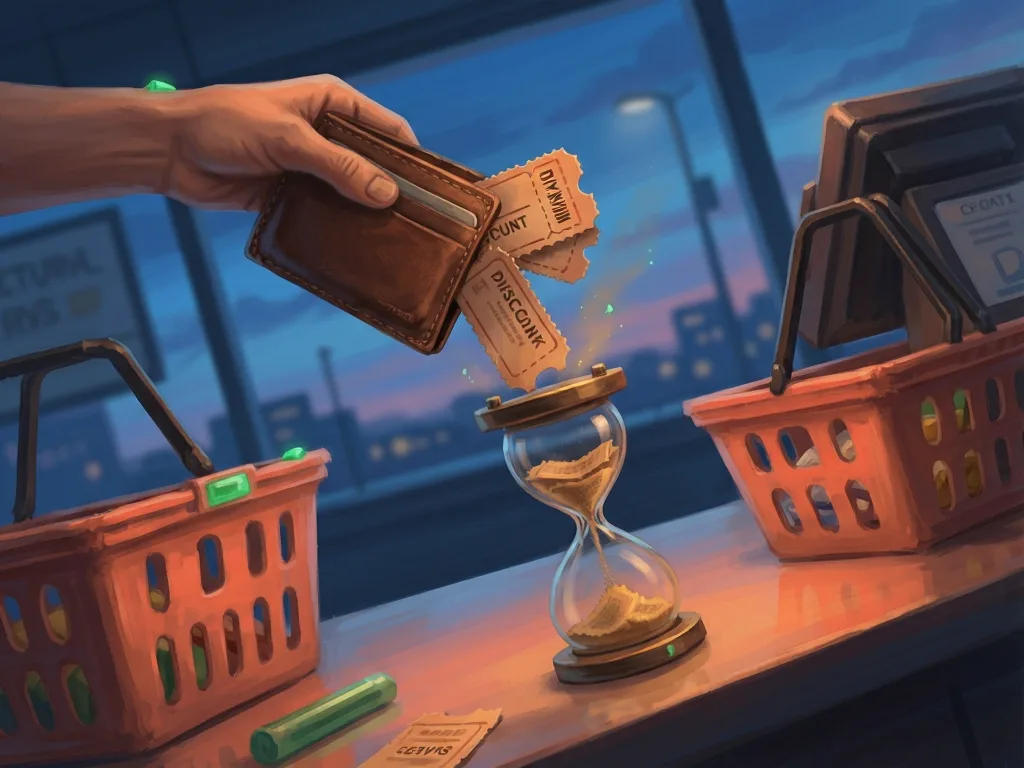
A practical way to handle this is to stop relying on memory or last-minute email searches. Google Wallet can act as a convenient place to collect discounts that you may want to redeem later. Instead of scattered offers, they can be kept in one place so you can keep track of deals before they expire.
How to turn an offer into a Google Wallet pass
Not every retailer provides an Add to Google Wallet button. A useful workaround is Google Wallet's Everything else option, which lets you create custom passes from photos of existing cards and offers without installing another app.
If you find a discount coupon in an email, you can save the promotional voucher as an image. If you see an offer online, you can take a screenshot. Those images can become Wallet passes.
To create one:
- Open Google Wallet.
- Tap Add to Wallet (+).
- Select Everything else.
- Take a picture of the offer, or choose an existing image from your phone's gallery.
Google Wallet then identifies the information in the image and creates a digital pass. Before saving, review the extracted details, make corrections, and add missing information. Once saved, the pass sits alongside other Wallet items, making it easier to find when you are ready to shop.
How to search for saved discount passes
Saving offers is only helpful if you can find them again. Google Wallet has a built-in search feature for cards and passes.
To use it:
- Open Google Wallet.
- Tap View more at the bottom of the home screen.
- Look for the Search your Wallet field at the top.
You can enter keywords such as "offer" or "discount" to find relevant passes. You can also type the retailer's name to locate a specific promotion.
What details to add before saving the pass
A custom pass can be more useful than a screenshot. The best part is that you are not limited to saving the discount amount. You can review and edit the information Google Wallet extracts from your image.
Make sure the pass includes everything needed to redeem the offer. You can add or correct the retailer's name, change the title, and include the promotional code, discount value, and expiration date. If the original offer includes a barcode or QR code, you can add it as well, so you can scan it at checkout rather than searching for the original coupon.
It also helps to preserve the offer's restrictions. If a coupon is valid only on selected products, requires a minimum purchase, or applies only to online orders, keep those conditions in the description or original offer image. That way, you do not need to revisit the retailer's website to remember why a discount might not apply. Before saving, preview the pass and correct any information Google Wallet has misread.
How Nearby passes can remind you at a store
Google Wallet can do more than store discount offers. It can also remind you about saved passes when you are near the participating merchant.
For example, if a retailer issues a loyalty card or discount offer through Google Wallet and configures its store locations, Wallet can send you a notification when you approach one of those locations. Tapping the notification takes you to the relevant pass, so you do not have to remember to look for it yourself.
To enable this feature:
- Open your phone's Settings app.
- Find Google Wallet under Apps.
- Go to App permissions.
- Under Permissions, allow Location access.
- Select Allow all the time.
- Enable Use precise location.
You should also enable Nearby Passes notifications by going to Settings > Manage Wallet notifications.
The important limitation of custom coupon passes
There is one important catch: Nearby pass reminders will not work with the custom discount passes you create using the Everything else option.
Nearby notifications require the pass issuer to configure merchant locations through Google's Wallet API. You can benefit from this feature when retailers issue supported passes with location information, but you cannot add that functionality by creating your own coupon pass.
What this means for your shopping routine
If you used to save discount offers in different places, from promotional emails and screenshots to retailer apps, you may have forgotten about them when it was time to shop. Google Wallet offers a simpler way to keep offers together and make them easier to find.
You can save retailer-issued passes or create custom ones using the Everything else option and add important details such as promo codes and expiration dates.
It is not a replacement for every retailer's coupon system, and manually created passes do not automatically activate discounts or support every Wallet feature. But as a central place to organize promotions and keep useful offers within reach, Google Wallet can become a handy shopping companion.
Related Apps




Recommend Apps