I rebuilt Google's Pixel-exclusive Safety Check, and anyone can install it for free.
Nov 28, 2026
What the feature is and why someone rebuilt it
Google Pixel devices include several tools that are not available in the same form on other phones. One of the most practical is Safety Check, a check-in timer inside Google's Personal Safety app.
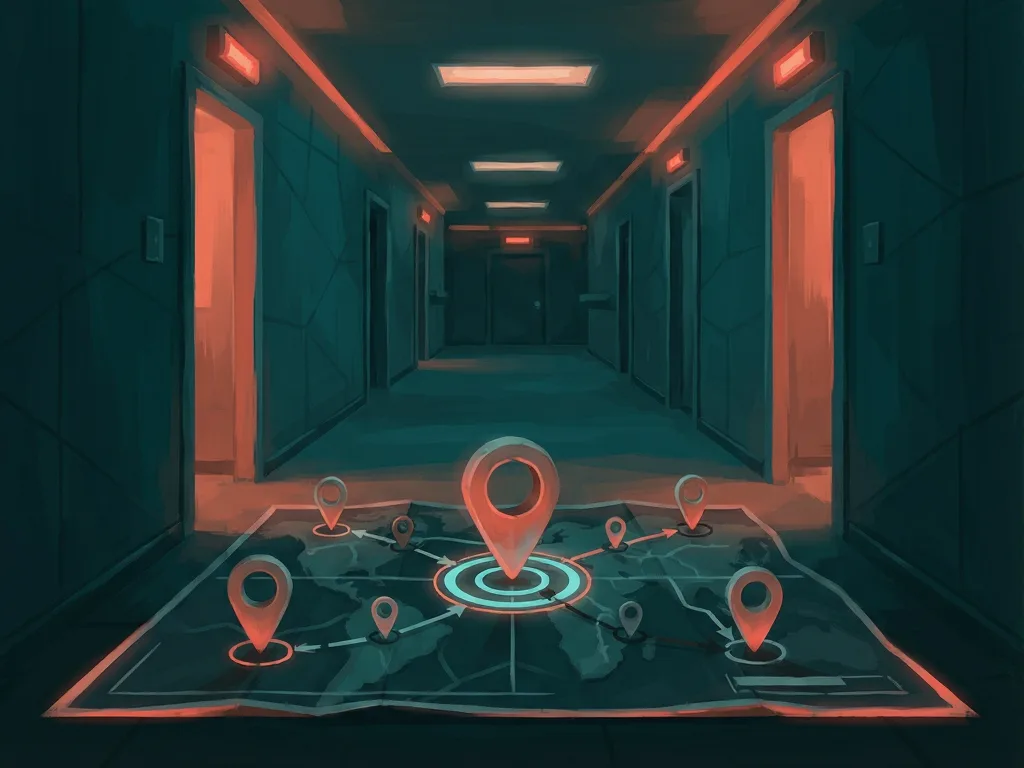
The original feature lets a user start a timed check-in. If the timer runs out and the user does not respond within 60 seconds, the app sends a text message to an emergency contact. That message includes a Google Maps location and the phone's battery level.
The idea is simple: a person can signal that they are traveling or moving through an unfamiliar area, and if something goes wrong, a trusted contact receives basic information without the person needing to type a message.
The limitation is that Safety Check is exclusive to Google Pixel devices. That means other Android phones do not receive the feature through Google's Personal Safety app.
Because that restriction felt limiting, the original author rebuilt the feature using MacroDroid, a free automation app. The exact build was published on MacroDroid's Template Store so anyone could install it.
The author also adds a clear warning: this workflow is for instructional purposes only. It should not be depended upon in an emergency.
Why Safety Check matters beyond Pixel phones
For people who already use a Pixel, Safety Check is a built-in layer of personal awareness. It does not replace calling emergency services or contacting someone directly. It gives a phone a structured way to share location and battery status when the user may be unable to respond.
For people using other Android phones, the absence of the feature means they either need to rely on manual texts, third-party safety apps, or a phone-specific implementation from their manufacturer. The MacroDroid project addresses one part of that gap: it recreates the check-in timer, emergency contact notification, location sharing, battery level reporting, and several warning states.
The replica covers most of the essentials. It can also send text messages even when the phone is locked. That matters in a safety situation where unlocking the phone and typing may not be practical.
Still, the replica is not identical to Google's version. It runs on the phone itself and does not use a secure server behind it. That difference affects what happens when the phone loses signal or powers off.
How the MacroDroid replica recreates the check-in timer
The replica is made of three macros:
- Safety Check, which runs the check-in itself.
- Check-in Ended, which ends a check-in and tells the emergency contact the user is fine.
- Safety Check Alerts, which adds warnings if something goes wrong during the check-in.
All three macros require the phone's location setting to be turned on. Without location enabled, they cannot fully work together to perform most of what Google's version does.
The check-in begins through a Safety Check tile added to the phone's Quick Settings. When the user taps that tile, a dialog box appears asking for the duration of the check-in.
After the duration is entered, another dialog box asks whether the user wants to send a message to the emergency contact at the start and end of the check-in. Once the user makes that choice, the check-in begins.
While the check-in is running, the tile lights up. If the user taps the tile again during the check-in, it does nothing.
Opening the notifications panel shows the active check-in. Text underneath displays how much time is left. At that point, the user has two useful controls:
- Stop the check-in at any time.
- Add 15 minutes to the remaining duration.
If the user chooses Stop, the check-in ends. If the emergency contact was alerted at the beginning of the check-in, they are informed that it has now ended. The tile becomes dim to show that the check-in is no longer active.
What happens when the timer ends
If the user does not stop the check-in, a notification appears when the timer ends. That notification lasts for 60 seconds.
During that window, the notification gives three options:
- Indicate that the user is safe.
- Share the user's location with the contact immediately.
- Call the local emergency line, like 911.
If the user picks none of those options and 60 seconds pass, the phone enters emergency mode.
In emergency mode, the emergency contact receives a message every 10 minutes. Each message contains the user's location and battery level. Each message also includes a Google Maps link to the location, along with the time that location was taken.
This continues for the next 24 hours unless the user picks up the phone and taps I'm safe on the emergency notification.
That structure mirrors the most important part of Google's Safety Check: it gives the user a chance to confirm safety before anything is escalated, and it sends repeated updates if the user cannot respond.
How the extra alerts handle location, battery, and restarts
The third macro, Safety Check Alerts, adds protections for situations where the phone's normal operation is interrupted. It fires when the phone restarts, when the battery is dying, or when Location is switched off.
If Location is off when the user starts a check-in, a pop-up appears with two choices:
- Turn it on first, which opens the Location settings.
- Continue anyway.
If the user continues without turning Location on, the emergency contact may receive an old location or no location at all.
If Location is turned off during a check-in, a pop-up asks the user to turn it back on. If that happens from the lock screen, the emergency contact will receive a link to the old location.
Battery status also triggers a warning. When the battery dips to 5%, the emergency contact receives the most recent location and a warning that the phone may switch off.
If the phone restarts while a check-in is active, the check-in stops. The emergency contact receives the last known location and a notification that the phone restarted.
After the phone boots again, the user sees a pop-up on the phone asking whether they are safe or want to start a new check-in.
These alerts make the replica more usable than a simple timer. They acknowledge real-world problems: location services can be turned off, batteries die, phones restart, and users may be locked out of normal settings.
Where the replica falls short of Google's Safety Check
The MacroDroid version closely replicates many visible parts of Google's Safety Check, but it has important limitations.
The biggest difference is the absence of a secure server behind the replica. Google says its Safety Check keeps sharing the last known location even if the phone dies or loses signal. The MacroDroid build runs only on the device. It does not use a server to continue sending updates after the phone is off or unable to transmit data.
That means if the phone dies and stays off, nothing more is sent. If the phone has no cellular signal, the text messages cannot go out.
There is one advantage to this on-device design: the replica does not require signing in to MacroDroid. That means the user's details do not have to leave the phone.
But that privacy advantage comes with a practical cost. The emergency contact receives text messages, and those messages may involve airtime charges depending on the user's mobile plan.
For readers, the trade-off is clear. The MacroDroid replica is more accessible across Android phones, and it keeps information on the device. Google's Pixel version has stronger continuity in low-signal or powered-off scenarios because of the service behind it.
How readers can install the Safety Check macros
The author made the macros available for download through MacroDroid's Template Store. The build can be installed without signing in to MacroDroid.
To use the exact build, follow these steps:
- Download MacroDroid from the Play Store if it is not already installed.
- Navigate to the Template Store.
- Search for Safety Check by Jamal.
- Look for the three macros: Check-in Ended, Safety Check, and Safety Check Alerts.
- Tap each macro and install it by tapping the + icon at the bottom right of the screen.
- Allow any permission that appears, including Appear on top, Alarms & reminders, Location, and SMS.
- For Location, set it to Allow all the time.
- Add the Safety Check tile to Quick Settings.
The first run of Safety Check asks for three pieces of information:
- The user's name.
- The emergency contact's number.
- The local emergency line.
That information is stored on the phone. In later check-ins, the user does not need to add it again.
What readers should understand before treating it as a safety tool
The replica is not a replacement for official emergency services. It is also not a fully supported Google safety feature. It is an automation project that recreates the behavior of Pixel's Safety Check on other Android phones.
The value is in the structure it gives users. A person can start a check-in before walking, riding, or traveling through a place where they want someone to know their status. If nothing happens, the contact may receive a simple start and end message, or no escalation at all. If the timer ends without a response, the system can send repeated location updates.
The author kept the feature on their own phone despite the limitations. The reason is personal and practical: walks back home on a lonely street at night are enough to justify having something active on the phone. It is a tool that can be turned on without disturbing the contact when things are fine, but can inform that contact of the user's whereabouts or last known location if things go wrong.
For readers using non-Pixel Android phones, the MacroDroid build offers a way to approximate Safety Check without waiting for Google to expand the feature. For readers who need a more reliable safety tool, the limitations around signal, battery death, and lack of server-side continuity matter. It is useful to understand, but it should be treated as a supplement to normal safety practices, not a guaranteed rescue system.
Related Apps





Recommend Apps